Bloons TD 6: Difference between revisions
IceCastles (talk | contribs) m updated upcoming crap. they havent officially announced a mod system delay but it not being in the preview notes is telling |
IceCastles (talk | contribs) m better wording for the upcoming hero and stuff |
||
| Line 1,167: | Line 1,167: | ||
<!-- Trying to organize this a little bit, first, things that NK has said to be released in a specific update, in planned order of release (e.g. update 69), do not put specific month here --> | <!-- Trying to organize this a little bit, first, things that NK has said to be released in a specific update, in planned order of release (e.g. update 69), do not put specific month here --> | ||
*Update 55 | *Update 55 | ||
**[[Dan D'Monke]] with | **[[Dan D'Monke]] Hero with [[Prince Adam]] skin (In-app purchase).<ref name="52.0 notes" /><ref name="v53_notes" /><ref name=":0" /> Planned for an exclusive bundle for two weeks after launch, after which Dan will be available for [[Monkey Money]].<ref name=":1">[https://www.reddit.com/r/btd6/comments/1tr0y2n/bloons_td_6_v550_update_preview/ "Bloons TD 6 v55.0 - Update Preview!"]. ''Reddit''. Retrieved Fri, 29 May 2025.</ref> | ||
** [[Skull Peak]] map returning from ''BTD5,''<ref name=":0" /> adjusted and renamed Skull Tweak.<ref name=":1" /> | ** [[Skull Peak]] map returning from ''BTD5,''<ref name=":0" /> adjusted and renamed Skull Tweak.<ref name=":1" /> | ||
** Improvements to co-op<ref name=":0" /> and [[Social Season Event|Social Seasons]].<ref name=":1" /> | ** Improvements to co-op<ref name=":0" /> and [[Social Season Event|Social Seasons]].<ref name=":1" /> | ||
Revision as of 00:14, 31 May 2026

|
| Developer(s) | Ninja Kiwi | |||
|---|---|---|---|---|
| Publisher(s) | Ninja Kiwi | |||
| Platform(s) | iOS, Android, Windows, macOS | |||
| Latest update | Version 55.2 | |||
| Release dates | ||||
|---|---|---|---|---|
| App Store | 13 June 2018 | |||
| Google Play | 13 June 2018 | |||
| Amazon Appstore | 4 September 2018 | |||
| Steam (Windows) | 18 December 2018[1] | |||
| Steam (macOS) | 12 March 2020[2] | |||
| Microsoft Store | 7 April 2021 | |||
| Epic Games Store (Windows) | 19 July 2022[3] | |||
| Epic Games Store (mobile) | 24 January 2025[4][5] | |||
| Humble Store | Unknown | |||
| Language(s) supported |
|---|
English
Arabic Danish German Spanish Spanish (Latin America) Finnish French Italian Japanese Korean Dutch Norwegian Polish Portuguese (Brazil) Russian Swedish Thai Turkish Chinese (simplified) Chinese (traditional) |
Bloons TD 6 (Bloons Tower Defense 6 in full[6] and often abbreviated as BTD6) is the sixth numbered installment in the Bloons TD series. It is the sequel to Bloons TD 5 and introduces new mechanics such as Heroes, Monkey Knowledge, and Paragons. It is the first Bloons TD game to feature 3D graphics (the first Bloons game in general to have fully 3D graphics is the mobile version of Bloons Supermonkey 2) and the first to not have a web browser version. It follows the same gameplay conventions established in Bloons TD 5, but introduces new mechanics such as Heroes, tier 5 upgrades, three upgrade paths, and line of sight.
The original version of Bloons TD 6 was released on iOS and Android first, then ported to PCs with minor differences. It is the basis of Bloons TD 6+, Bloons TD 6 NETFLIX, the console version, and the Chinese version, which have more substantial differences. The game is also the basis of Bloons Adventure Time TD and Bloons TD Battles 2, which have similar game mechanics; they are sometimes unofficially referred to as the "Bloons TD 6 generation" collectively.
Lists
Gameplay
Bloons TD 6 follows the same tower defense conventions established in prior games: enemy Bloons enter the map in waves and follow a path to reach the exit, and the player's goal is to spend cash to place towers (also called Monkeys or Monkey Towers) on the map that can attack and pop the Bloons before they leave. The player earns cash from popping Bloons, which can be spent on more towers and upgrades to make them more powerful. Each tower has three upgrade paths, but only one path can be upgraded all the way to the fifth and final upgrade (barring Paragon upgrades) per tower, while one other upgrade path can be upgraded twice. Some towers and upgrades don't pop bloons, but instead support the player in some other way, such as the Monkey Village increasing the range of nearby towers and the Banana Farm producing bananas which turn into money when collected. As the game progresses, more difficult Bloon variants are introduced, for example the Blue Bloon spawns a Red Bloon when popped, and some of which even have special properties such as being immune to towers that use explosives or being both invisible and invincible to certain towers. The player wins by completing a certain number of rounds or loses by letting too many Bloons escape and running out of lives. The amount of lives lost per bloon is dependent on the amount of damage required to fully pop the bloon and any bloons spawned after popping the outer layer.
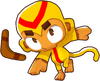
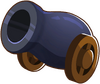
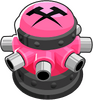
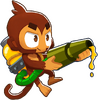
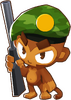
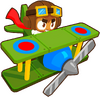
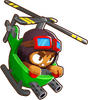
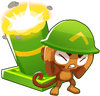
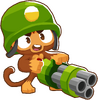
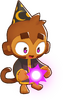
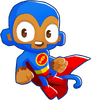
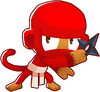
In this game, towers are split into different categories. There are four categories of regular towers: Primary, Military, Magic, and Support. There are also Heroes, which are characters the player can only bring one of into a game.
Currencies
- Monkey Money: used to purchase Heroes, Hero Skins, Monkey Knowledge, Powers, Continues, and other features. Earned primarily by completing maps.
- Monkey Knowledge Points: can be invested into Monkey Knowledge to unlock more. Earned primarily by leveling up.
- Trophies: can purchase cosmetic items in the Trophy Store. Earned primarily by participating in events.
Levels and unlock requirements
The player earns experience at the end of each round cleared. Higher rounds earn more XP, which further increases by playing on higher map difficulties. For levels that unlock a new non-Hero tower, the player is given a choice of which tower to unlock from one of the four main tower categories. Most non-Hero towers unlock by leveling up, except for the Dartling Gunner, Beast Handler, Mermonkey, and Desperado, which instead use the Gift Box system unlocked at level 30.
- Primary towers unlocked by leveling up: Dart Monkey, Boomerang Monkey, Bomb Shooter, Tack Shooter, Ice Monkey, Glue Gunner
- Military towers unlocked by leveling up: Sniper Monkey, Monkey Sub, Monkey Buccaneer, Monkey Ace, Heli Pilot, Mortar Monkey
- Magic towers unlocked by leveling up: Wizard Monkey, Super Monkey, Ninja Monkey, Alchemist, Druid
- Support towers unlocked by leveling up: Banana Farm, Spike Factory, Monkey Village, Engineer Monkey
After reaching the level cap at level 155, XP instead goes towards the player's Veteran Level, which is purely cosmetic.
| Level(s) | Reward |
|---|---|
| 2–6 |
|
| 7–12 |
|
| 13 |
|
| 14 |
|
| 15 |
|
| 16–17 |
|
| 18 |
|
| 19 |
|
| 20 |
|
| 21 |
|
| 22–24 |
|
| 25 | |
| 26 |
|
| 27 |
|
| 28 |
|
| 29 |
|
| 30 |
|
| 31–32 |
|
| 33 |
|
| 34 |
|
| 35 |
|
| 36 |
|
| 37–49 |
|
| 50 |
|
| 51–155 |
|

Monkey Knowledge
Monkey Knowledge is an enhancement system that allows the player to unlock permanent benefits for towers, upgrades, and other gameplay elements. Monkey Knowledge upgrades are divided into six skill trees: Primary, Military, Magic, Support, Heroes, and Powers. Some Knowledge upgrades unlock global benefits, such as increasing all towers' attack speeds or earning more Monkey Money for completing maps, and may be completely unrelated to the theme of the trees they belong to.
Insta Monkeys
Insta Monkeys are one-use items that can be used to place towers with preset upgrades. One is earned by beating every 100th round in standard play, from collection events, or from the Daily Reward. Insta Monkeys are considered powers, meaning they are banned in gamemodes and challenges that ban powers like CHIMPS, Ranked Bosses, and Deflation
Paragons
Paragons are a special kind of upgrade introduced in version 27.0. Considered their own upgrade tier, Paragons combine elements of all three of the tower's tier 5 upgrades into one unit, making them extremely powerful. To create a Paragon, the player needs to have all three of the tower's tier 5 upgrades on the map. Upon upgrading one of the tier 5 towers into a Paragon, all towers of the same kind are absorbed into the Paragon, including the other tier 5 towers. The total amount of cash spent, upgrades purchased, damage dealt, and cash produced of the towers absorbed, among other factors, determine the Paragon's Degree, which affects the Paragon's stats. Paragons take a lot of tower XP to unlock and are extremely expensive, so they're typically used in Freeplay and Boss Bloon-related modes.

Monkeys
Towers





















Bloons
| Item | Health | RBE | Speed | Immunity | Children |
|---|---|---|---|---|---|
| 1 | 1 | 25 | — | — | |
| 1 | 2 | 35 | — | Red Bloon ×1 | |
| 1 | 3 | 45 | — | Blue Bloon ×1 | |
| 1 | 4 | 80 | — | Green Bloon ×1 | |
| 1 | 5 | 87.5 | — | Yellow Bloon ×1 | |
| 1 | 11 | 45 | Explosion | Pink Bloon ×2 | |
| 1 | 11 | 50 | Cold, Glacier, Frigid | Pink Bloon ×2 | |
| 1 | 11 | 75 | Energy, Plasma, Fire, Frigid | Pink Bloon ×2 | |
| 1 | 23 | 25 | Sharp, Shatter, Cold, Energy | Black Bloon ×2 | |
| 1 | 23 | 45 | Explosion, Cold, Glacier, Frigid | White Bloon ×1, Black Bloon ×1 | |
| 1 | 47 | 55 | — | Zebra Bloon ×2 | |
| 10 | 104 | 62.5 | — | Rainbow Bloon ×2 |


| Item | Health | RBE | Speed | Immunity | Children |
|---|---|---|---|---|---|
| 200 | 616 | 25 | — | Ceramic Bloon ×4 | |
| 700 | 3,164 | 6.25 | — | MOAB ×4 | |
| 4,000 | 16,656 | 4.5 | — | BFB ×4 | |
| 400 | 816 | 66 | Sharp, Shatter, Cold, Energy, Explosion | Camo Regrow Ceramic ×4 | |
| 20,000 | 55,760 | 4.5 | Slow, blowback, knockback | ZOMG ×2, DDT ×3 |


| Boss | Skulls (normal) | Skulls (elite) | Introduced |
|---|---|---|---|
| 3 | 7 | Version 27.0 | |
| 5 | 5 | Version 28.0 | |
| 3 | 7 | Version 31.0 | |
| 3 | 7 | Version 34.0 | |
| 3 | 5 | Version 38.0 | |
| 4 | 7 | Version 45.0 | |
| 5 | 7 | Version 52.0 |


Bloons can have modifiers that give them additional properties. Those properties will also be inherited to their children if they can have that property.
| Bloon | Properties |
|---|---|
 Camo Bloon Camo Bloon
|
Identified by a camouflage pattern. Can be applied to any regular Bloon, DDTs and Phayze also share this property.
Towers will ignore them if they do not have camo detection, also they are immune to the projectiles of such towers. |
 Regrow Bloon Regrow Bloon
|
Identified by their heart shape. Can be applied to any regular Bloon.
After being damaged they will regenerate one layer every 3 seconds. |
 Fortified Bloon Fortified Bloon
|
Identified by one or two bands in the around the Bloon's body. Can be applied to Lead, Ceramic and MOAB-Class Bloons.
Doubles the health of the layer (Fortified Lead Bloons have 4 HP instead). |
Bloons can also appear with multiple of those properties at the same time:
| Appearance | Name |
|---|---|

|
Camo Regrow Bloon |

|
Fortified Camo Bloon |

|
Fortified Regrow Bloon |

|
Fortified Camo Regrow Bloon |
Other


Maps
The in-game map list has a search feature that allows the player to filter maps by either searching their name or inputting one of the following commands. The input is not case-sensitive.
/NoMedals— Maps the player has not earned any medals on./Incomplete— Maps the player has not earned all medals on./Complete,/AllMedals— Maps that the player has earned all medals on. This does not require the black CHIMPS medal./Bronze,/Silver,/Gold,/Black— Maps that the player currently has the corresponding map border on./CollectionEvent,/MonkeyTeams,/GoldenBloon— Maps that have the corresponding event (or bonus rewards in the case of the Collection Event)./Events— Maps that have any active events.
![[[Alpine Run|Alpine Run]]](/images/thumb/9/97/BTD6_MapSelectAlpineRunButton.png/120px-BTD6_MapSelectAlpineRunButton.png)
![[[Candy Falls|Candy Falls]]](/images/thumb/2/21/BTD6_MapSelectCandyfallsButton.png/120px-BTD6_MapSelectCandyfallsButton.png)
![[[Carved|Carved]]](/images/thumb/e/e9/BTD6_MapSelectCarvedButton.png/120px-BTD6_MapSelectCarvedButton.png)
![[[Cubism|Cubism]]](/images/thumb/8/8d/BTD6_MapSelectCubismButton.png/120px-BTD6_MapSelectCubismButton.png)
![[[End Of The Road|End Of The Road]]](/images/thumb/c/c9/BTD6_MapSelectEndOfTheRoadButton.png/120px-BTD6_MapSelectEndOfTheRoadButton.png)
![[[Four Circles|Four Circles]]](/images/thumb/5/52/BTD6_MapSelectFourCirclesButton.png/120px-BTD6_MapSelectFourCirclesButton.png)
![[[Frozen Over|Frozen Over]]](/images/thumb/4/4d/BTD6_MapSelectFrozenOverButton.png/120px-BTD6_MapSelectFrozenOverButton.png)
![[[Hedge|Hedge]]](/images/thumb/0/01/BTD6_MapSelectHedgeButton.png/120px-BTD6_MapSelectHedgeButton.png)
![[[In The Loop|In The Loop]]](/images/thumb/e/e6/BTD6_MapSelectInTheLoopButton.png/120px-BTD6_MapSelectInTheLoopButton.png)
![[[Logs|Logs]]](/images/thumb/5/58/BTD6_MapSelectLogsButton.png/120px-BTD6_MapSelectLogsButton.png)
![[[Lotus Island|Lotus Island]]](/images/thumb/a/ac/BTD6_MapSelectLotusIslandButton.png/120px-BTD6_MapSelectLotusIslandButton.png)
![[[Middle of the Road|Middle of the Road]]](/images/thumb/f/f3/BTD6_MapSelectMiddleOfTheRoadMapButton.png/120px-BTD6_MapSelectMiddleOfTheRoadMapButton.png)
![[[Monkey Meadow (BTD6)|Monkey Meadow]]](/images/thumb/3/37/BTD6_MapSelectMonkeyMeadowButton.png/120px-BTD6_MapSelectMonkeyMeadowButton.png)
![[[One Two Tree|One Two Tree]]](/images/thumb/a/a2/BTD6_MapSelectOneTwoTreeButton.png/120px-BTD6_MapSelectOneTwoTreeButton.png)
![[[Park Path (BTD6)|Park Path]]](/images/thumb/6/64/BTD6_MapSelectParkPathButton.png/120px-BTD6_MapSelectParkPathButton.png)
![[[Resort|Resort]]](/images/thumb/1/1a/BTD6_MapSelectResortMapButton.png/120px-BTD6_MapSelectResortMapButton.png)
![[[Scrapyard|Scrapyard]]](/images/thumb/b/b0/BTD6_MapSelectScrapyardMapButton.png/120px-BTD6_MapSelectScrapyardMapButton.png)
![[[Skates|Skates]]](/images/thumb/3/34/BTD6_MapSelectSkatesButton.png/120px-BTD6_MapSelectSkatesButton.png)
![[[Skull Tweak|Skull Tweak]]](/images/thumb/f/f9/BTD6_MapSelectSkullPeakButton.png/120px-BTD6_MapSelectSkullPeakButton.png)
![[[Spa Pits|Spa Pits]]](/images/thumb/9/9e/BTD6_MapSelectSpaPitsButton.png/120px-BTD6_MapSelectSpaPitsButton.png)
![[[The Cabin|The Cabin]]](/images/thumb/9/9c/BTD6_MapSelectTheCabinMapButton.png/120px-BTD6_MapSelectTheCabinMapButton.png)
![[[Three Mines 'Round|Three Mines 'Round]]](/images/thumb/7/7d/BTD6_MapSelectThreeMinesAroundMapButton.png/116px-BTD6_MapSelectThreeMinesAroundMapButton.png)
![[[Tinkerton|Tinkerton]]](/images/thumb/0/08/BTD6_MapSelectTinkertonMapButton.png/120px-BTD6_MapSelectTinkertonMapButton.png)
![[[Town Center|Town Center]]](/images/thumb/5/53/BTD6_MapSelectTownCentreButton.png/120px-BTD6_MapSelectTownCentreButton.png)
![[[Tree Stump|Tree Stump]]](/images/thumb/6/64/BTD6_MapSelectTreeStumpButton.png/120px-BTD6_MapSelectTreeStumpButton.png)
![[[Winter Park|Winter Park]]](/images/thumb/d/db/BTD6_MapSelectWinterPark.png/120px-BTD6_MapSelectWinterPark.png)
![[[Adora's Temple|Adora's Temple]]](/images/thumb/4/46/BTD6_MapSelectAdorasTemple.png/120px-BTD6_MapSelectAdorasTemple.png)
![[[Ancient Portal|Ancient Portal]]](/images/thumb/4/48/BTD6_MapSelectAncientPortalMapButton.png/120px-BTD6_MapSelectAncientPortalMapButton.png)
![[[Balance|Balance]]](/images/thumb/f/f6/BTD6_MapSelectBalanceMapButton.png/120px-BTD6_MapSelectBalanceMapButton.png)
![[[Bazaar|Bazaar]]](/images/thumb/8/83/BTD6_MapSelectBazaarButton.png/120px-BTD6_MapSelectBazaarButton.png)
![[[Bloonarius Prime|Bloonarius Prime]]](/images/thumb/0/0b/BTD6_MapSelectBloonariusPrimeButton.png/120px-BTD6_MapSelectBloonariusPrimeButton.png)
![[[Chutes|Chutes]]](/images/thumb/a/a0/BTD6_MapSelectChutesButton.png/120px-BTD6_MapSelectChutesButton.png)
![[[Covered Garden|Covered Garden]]](/images/thumb/8/8a/BTD6_MapSelectCoveredGardenMapButton.png/120px-BTD6_MapSelectCoveredGardenMapButton.png)
![[[Cracked|Cracked]]](/images/thumb/2/28/BTD6_MapSelectCrackedButton.png/120px-BTD6_MapSelectCrackedButton.png)
![[[Downstream (BTD6)|Downstream]]](/images/thumb/d/db/BTD6_MapSelectDownstreamButton.png/120px-BTD6_MapSelectDownstreamButton.png)
![[[Encrypted|Encrypted]]](/images/thumb/2/23/BTD6_MapSelectEncryptedButton.png/120px-BTD6_MapSelectEncryptedButton.png)
![[[Firing Range|Firing Range]]](/images/thumb/3/35/BTD6_MapSelectFiringRangeButton.png/120px-BTD6_MapSelectFiringRangeButton.png)
![[[Haunted|Haunted]]](/images/thumb/e/e8/BTD6_MapSelectHauntedButton.png/120px-BTD6_MapSelectHauntedButton.png)
![[[KartsNDarts|KartsNDarts]]](/images/thumb/3/3b/BTD6_MapSelectKartsNDarts.png/120px-BTD6_MapSelectKartsNDarts.png)
![[[Lost Crevasse|Lost Crevasse]]](/images/thumb/4/4d/BTD6_MapSelectLostCrevasseMapButton.png/120px-BTD6_MapSelectLostCrevasseMapButton.png)
![[[Luminous Cove|Luminous Cove]]](/images/thumb/4/42/BTD6_MapSelectLuminousCoveMapButton.png/120px-BTD6_MapSelectLuminousCoveMapButton.png)
![[[Moon Landing (BTD6)|Moon Landing]]](/images/thumb/d/d3/BTD6_MapSelectMoonLandingButton.png/120px-BTD6_MapSelectMoonLandingButton.png)
![[[Polyphemus|Polyphemus]]](/images/thumb/5/51/BTD6_MapSelectPolyphemusMapButton.png/120px-BTD6_MapSelectPolyphemusMapButton.png)
![[[Protect The Yacht|Protect The Yacht]]](/images/thumb/1/1d/BTD6_MapSelectProtectTheYachtMapButton.png/120px-BTD6_MapSelectProtectTheYachtMapButton.png)
![[[Quarry|Quarry]]](/images/thumb/f/f5/BTD6_MapSelectQuarryMapButton.png/120px-BTD6_MapSelectQuarryMapButton.png)
![[[Quiet Street|Quiet Street]]](/images/thumb/d/dd/BTD6_MapSelectQuietSteetMapButton.png/120px-BTD6_MapSelectQuietSteetMapButton.png)
![[[Rake|Rake]]](/images/thumb/d/d6/BTD6_MapSelectRakeButton.png/120px-BTD6_MapSelectRakeButton.png)
![[[Spice Islands|Spice Islands]]](/images/thumb/1/14/BTD6_MapSelectSpiceIslandsButton.png/120px-BTD6_MapSelectSpiceIslandsButton.png)
![[[Spring Spring|Spring Spring]]](/images/thumb/e/ed/BTD6_MapSelectSpringSpringButton.png/120px-BTD6_MapSelectSpringSpringButton.png)
![[[Streambed|Streambed]]](/images/thumb/6/67/BTD6_MapSelectStreambedButton.png/120px-BTD6_MapSelectStreambedButton.png)
![[[Sulfur Springs|Sulfur Springs]]](/images/thumb/8/82/BTD6_MapSelectSulfurSpringsButton.png/120px-BTD6_MapSelectSulfurSpringsButton.png)
![[[Water Park|Water Park]]](/images/thumb/a/a3/BTD6_MapSelectWaterparkMapButton.png/120px-BTD6_MapSelectWaterparkMapButton.png)
![[[Another Brick|Another Brick]]](/images/thumb/e/e9/BTD6_MapSelectAnotherBrickButton.png/120px-BTD6_MapSelectAnotherBrickButton.png)
![[[Cargo|Cargo]]](/images/thumb/0/09/BTD6_MapSelectCargoButton.png/120px-BTD6_MapSelectCargoButton.png)
![[[Castle Revenge|Castle Revenge]]](/images/thumb/c/cc/BTD6_MapSelectCastleRevengeMapButton.png/120px-BTD6_MapSelectCastleRevengeMapButton.png)
![[[Cornfield|Cornfield]]](/images/thumb/0/09/BTD6_MapSelectCornfieldsButton.png/120px-BTD6_MapSelectCornfieldsButton.png)
![[[Dark Path|Dark Path]]](/images/thumb/e/ea/BTD6_MapSelectDarkPathButton.png/120px-BTD6_MapSelectDarkPathButton.png)
![[[Enchanted Glade|Enchanted Glade]]](/images/thumb/b/b2/BTD6_MapSelectEnchantedGladeMapButton.png/120px-BTD6_MapSelectEnchantedGladeMapButton.png)
![[[Erosion|Erosion]]](/images/thumb/c/c3/BTD6_MapSelectErosionButton.png/120px-BTD6_MapSelectErosionButton.png)
![[[Geared|Geared]]](/images/thumb/8/85/BTD6_MapSelectGearedButton.png/120px-BTD6_MapSelectGearedButton.png)
![[[High Finance|High Finance]]](/images/thumb/9/9a/BTD6_MapSelectHighFinanceButton.png/120px-BTD6_MapSelectHighFinanceButton.png)
![[[Last Resort|Last Resort]]](/images/thumb/5/51/BTD6_MapSelectLastResortMapButton.png/116px-BTD6_MapSelectLastResortMapButton.png)
![[[Mesa|Mesa]]](/images/thumb/0/0b/BTD6_MapSelectMesaButton.png/120px-BTD6_MapSelectMesaButton.png)
![[[Midnight Mansion|Midnight Mansion]]](/images/thumb/d/d5/BTD6_MapSelectMidnightMansionMapButton.png/120px-BTD6_MapSelectMidnightMansionMapButton.png)
![[[Mushroom Grotto|Mushroom Grotto]]](/images/thumb/e/ee/BTD6_MapSelectMushroomGrottoButton.png/120px-BTD6_MapSelectMushroomGrottoButton.png)
![[[Off The Coast|Off The Coast]]](/images/thumb/b/be/BTD6_MapSelectOffTheCoastButton.png/120px-BTD6_MapSelectOffTheCoastButton.png)
![[[Party Parade|Party Parade]]](/images/thumb/3/31/BTD6_MapSelectPartyParadeButton.png/120px-BTD6_MapSelectPartyParadeButton.png)
![[[Pat's Pond|Pat's Pond]]](/images/thumb/f/fb/BTD6_MapSelectPatsPondButton.png/120px-BTD6_MapSelectPatsPondButton.png)
![[[Peninsula|Peninsula]]](/images/thumb/d/d4/BTD6_MapSelectPeninsulaButton.png/120px-BTD6_MapSelectPeninsulaButton.png)
![[[Spillway|Spillway]]](/images/thumb/3/3c/BTD6_MapSelectSpillwayButton.png/120px-BTD6_MapSelectSpillwayButton.png)
![[[Sunken Columns|Sunken Columns]]](/images/thumb/6/6e/BTD6_MapSelectSunkenColumnsMapButton.png/120px-BTD6_MapSelectSunkenColumnsMapButton.png)
![[[Sunset Gulch|Sunset Gulch]]](/images/thumb/2/28/BTD6_MapSelectSunsetGulchMapButton.png/120px-BTD6_MapSelectSunsetGulchMapButton.png)
![[[Underground|Underground]]](/images/thumb/a/a2/BTD6_MapSelectUndergroundButton.png/120px-BTD6_MapSelectUndergroundButton.png)
![[[X Factor|X Factor]]](/images/thumb/8/8a/BTD6_MapSelectXFactorButton.png/120px-BTD6_MapSelectXFactorButton.png)
![[[Ouch|#Ouch]]](/images/thumb/2/23/BTD6_MapSelectouchButton.png/120px-BTD6_MapSelectouchButton.png)
![[[Blons|Blons]]](/images/thumb/1/1b/BTD6_MapSelectBlonsMapButton.png/120px-BTD6_MapSelectBlonsMapButton.png)
![[[Bloody Puddles|Bloody Puddles]]](/images/thumb/0/08/BTD6_MapSelectBloodyPuddlesButton.png/120px-BTD6_MapSelectBloodyPuddlesButton.png)
![[[Dark Castle|Dark Castle]]](/images/thumb/a/a1/BTD6_MapSelectDarkCastleButton.png/120px-BTD6_MapSelectDarkCastleButton.png)
![[[Dark Dungeons|Dark Dungeons]]](/images/thumb/c/c1/BTD6_MapSelectDarkDungeonsButton.png/120px-BTD6_MapSelectDarkDungeonsButton.png)
![[[Flooded Valley|Flooded Valley]]](/images/thumb/7/7d/BTD6_MapSelectFloodedValleyButton.png/120px-BTD6_MapSelectFloodedValleyButton.png)
![[[Glacial Trail|Glacial Trail]]](/images/thumb/0/08/BTD6_MapSelectGlacialTrailButton.png/120px-BTD6_MapSelectGlacialTrailButton.png)
![[[Infernal|Infernal]]](/images/thumb/7/76/BTD6_MapSelectInfernal.png/120px-BTD6_MapSelectInfernal.png)
![[[Muddy Puddles|Muddy Puddles]]](/images/thumb/1/1a/BTD6_MapSelectMuddyPuddlesButton.png/120px-BTD6_MapSelectMuddyPuddlesButton.png)
![[[Quad|Quad]]](/images/thumb/4/40/BTD6_MapSelectQuadButton.png/120px-BTD6_MapSelectQuadButton.png)
![[[Ravine|Ravine]]](/images/thumb/1/18/BTD6_MapSelectRavineButton.png/120px-BTD6_MapSelectRavineButton.png)
![[[Sanctuary|Sanctuary]]](/images/thumb/2/28/BTD6_MapSelectSanctuaryMapButton.png/120px-BTD6_MapSelectSanctuaryMapButton.png)
![[[Tricky Tracks|Tricky Tracks]]](/images/thumb/2/2f/BTD6_MapSelectTrickyTracksButton.png/120px-BTD6_MapSelectTrickyTracksButton.png)
![[[Workshop (BTD6)|Workshop]]](/images/thumb/e/e2/BTD6_MapSelectWorkshopButton.png/120px-BTD6_MapSelectWorkshopButton.png)
The maps Protect The Yacht and Blons can only be played in the Challenge Editor, the Odyssey Editor, Boss Challenge, and the Content Browser, and not in standard solo or Co-op play.
Modes










Other modes
Legends
Legends are a series of expansion content updates for BTD6, each expansion focuses on bringing additional game modes and content in the form of paid DLC. Currently two expansions have been released:
Offline

|
This article is in need of research. You can help out by editing this article or discussing your findings on the talk page. The editor who added this notice elaborates: Since v35.0 can you still be allowed to play the game while internet access is gone and the first-time download is not done? |
Upon starting the game for the first time, the player will be prompted to download files from the Ninja Kiwi servers in order to play the game; it's not possible to play offline until that is done. Once all of these files are downloaded, the player is able to play offline.
If playing in the current update and internet access is absent, the player may still play the game normally but without the online functions.
If a new update is released and the player hasn't updated the game app yet, the game may prompt the player with a messagebox.[7] After several weeks, the game since Version 35.0 will undergo a reduced functionality offline mode.
The following occur if playing in reduced functionality offline mode, compared to just not having internet access:
- Viewing the Events menu is no longer possible
- Boss Challenge
- Daily Challenge (including Advanced Challenge and Co-Op Challenge)
- In the Settings menu, all buttons related to internet-related functionality are removed
Events
- Daily Reward
- Daily Challenge
- Monkey Teams
- Golden Bloon
- Race Event
- Odyssey Event
- Boss Bloon Event
- Boss Challenge
- Contested Territory
- Boss Rush
- Collection Event
- Sweepstakes Event
Social features and customization
- Hero Skins
- Extras
- Trophy Store
- Profile
- Co-op
- Teams
- Challenge Editor
- Odyssey Editor
- Map Editor
- Content Browser: An in-game browser for community-created challenges, Odysseys, and maps.
- Gift codes: Codes distributed through official social media that can be redeemed for in-game rewards.
Settings

|
This section is incomplete. You can help out by expanding it. The editor who added this notice elaborates: Add PNGs of the settings and the Settings button |


The player is able to adjust settings, which is accessible from the Settings menu, indicated by a gear icon. In Bloons TD 6, the Settings menu is accessible both in the main menu and when playing a game. Some settings are shared in common with the other menus.
It is possible that not all settings are available or the layout is different across different versions of the game or even after an update.
Screen size

Located at the top right of the screen, it opens a drop-down menu where the player can change the screen size/resolution of the game and it also has two additional checkboxes, one at the top to enable or disable fullscreen and a second at the bottom to limit the framerate of the game to 60 fps. It defaults to fullscreen with a resolution equal to the screen size and the framerate limit disabled.
Jukebox

The Jukebox allows the player to hear the game's music. Clicking on the button opens a different menu where the player can select a track to play with basic controls. Players can add additional tracks by purchasing them from the Trophy Store. Purchasing the Legends DLCs also makes their main music available if the Legend requirements are met, if any (for example, the Frontier Legends main theme requires completing the "Ain't From Around Here" Frontier Feat).
Players can also choose a set of tracks to add to the Jukebox which makes them available in-game instead of the map's default music. To fully use this option, the player must also check the "Enable" box in the main setting menu, below the "Jukebox" button.
Volume settings
|
|
This section is incomplete. You can help out by expanding it. The editor who added this notice elaborates: Add the icons in the table |
This menu allows the player to adjust the volume of the different sounds of the game, the menu consists of a slider that goes from 0% to 100% and a icon which represents which sounds are controlled by the slider:
| Control | Audio cue |
|---|---|
| Music | The game's main theme. |
| Audio effects | Clicking noise played on repeat. |
| Hero voicelines | Quincy saying "Yes?" on repeat. |
The audio cue for effects and voicelines will play only while the slider is dragged. Clicking on the button will mute or unmute the sound.
Backup
Backups the player's game data in Ninja Kiwi's servers for general backup purposes or to change devices, usually the game should save and backup automatically.
Account settings

This menu allows players to sign-in or logout from their Ninja Kiwi Account. This allows cross-platform save synchronization or the ability to recover progress after changing a device. Players can also use their app provider (such as Steam, Google Play or Epic Games) or Twitch as a sign-in option. Players can also generate a "Linking Code" for a quick log-in into a different device. Using the Logout version will have the same effect as if used from the main settings menu, for more information see the Logout section below.
Accounts from Apple Arcade, NETFLIX or the Chinese versions of the game cannot be transferred to other versions. Other app fronts like Steam, Epic Games, Google Play Store or Apple's App Store can share data between each other using Ninja Kiwi's servers.
In addition to this players can change their in-game name (which is shown in the main menu, Co-op or rankings) or their linked email. The User ID is the main identifier of the player's account across multiple devices and is generated when the game is first launched, it is recommended to have a backup for it for possible account-related problems in the future.
The appearance and contents of this menu may be different depending on the app provider.
Contact Support

This option allows users to contact Ninja Kiwi for issues relating to in-game bugs, lost items, issues with purchases, report of hacked accounts, feedback about the game, account issues or other problems. If the player wishes to use a browser interface instead of doing it in-game, allowing for text formatting and attachments, they can do it at their official support page.
Marketing preferences

In this page users can choose to receive marketing emails from Ninja Kiwi about game news or about Ninja Kiwi in general.
Open Data API

In this page users can create a Open Access Key (OAK) which allows external applications or websites to access to Ninja Kiwi's Open Data API with the user's account, this information only contains in-game data and can be revoked at any time, it also expires automatically after 90 days. For more information about the API players can consult the official FAQ and developers can see the API documentation on this page. An example website that can be used to see the player's game data once an OAK is provided is BTD6 API Explorer
Information that can be accessed by this API include:
- Latest game version played
- Everything from the player's profile including avatar, banner, in-game name, player level, XP, medals and profile stats, including those from Legends DLC (even if not set to public in-game).
- Additional stats not shown in-game such as amount of daily challenges and current streak, race attempts, tiles captured in Contested Territory, Challenges played or shared, continues used, towers sold, and amount of tier upgrades purchased.
- Towers and upgrades unlocked, Tower XP, custom Tower names.
- Heroes and Skins unlocked. Currently selected Hero.
- Amount of Monkey Knowledge (Points), Powers (Pro), Insta Monkeys, Crates opened in Collection Events, Achievements, Trophy Store items, current and lifetime amount of Trophies and Team Trophies, Quests, Monkey Money unlocked, cleared or in the player's possession respectively.
- Unlocked Extra settings and if they are currently active (except Double Cash or Fast Track).
- Amount of times a map has been completed on an specific game mode and highest round reached.
- Complete record of the amount of Towers, Heroes, Paragons and Abilities used (in-game only the top 3 Towers and Heroes are shown).
Delete account

Here users can request their account to be deleted, process that takes between 48 to 72 hours, after that, players will no longer be able to log-in and all their game progress and purchases will be lost.
Privacy Policy and Terms of service
These options just opens a browser window to their respective content:
Logout
This option ends the current game session with the logged account and returns to the Title Screen. From here players can log-in with an existing account ("I've played before" button on the top left) or if they start the game, a new profile will be created and the game will start from the First Time Tutorial! Quest.
Notice that if the player has not logged in with a Ninja Kiwi or their app provider account, the only way to recover game progress is by using the User ID, which is presented to the player before logging out, and if not recovered in that moment, the account and their game progress will be lost forever.
Language

This menu allows players to change the game text to their language of preference, this change is applied instantly. There are a few things that are not translated from English such as:
- Hero voice lines
- Name and descriptions of Odyssey events
- Some banners in the Events menu
- Some game assets (for example stylized Boss name in the Boss Challenge menu)
- Proper nouns in some languages (for example Rogue Legends)
The language options in order from the menu are English, German, French, Spanish (Spain), Spanish (Latin America), Italian, Portuguese (Brazil), Norwegian, Swedish, Finnish, Danish, Dutch, Russian, Turkish, Korean, Japanese, Chinese (Simplified), Chinese (Traditional), Polish, Thai, Arabic and Monklish, with the last one being English written with Monklish script.
Hotkeys
|
|
This article is in need of research. You can help out by editing this article or discussing your findings on the talk page. The editor who added this notice elaborates: Determine if this menu exists on Android / iOS if a keyboard is connected |

In this menu players playing on Windows or macOS can assign hotkeys to various player actions, divided in three broad categories:
- Monkeys: Selecting a Tower for placement (Desperado and Mermonkey do not have a default hotkey assigned). And if a tower is selected, upgrade it on a specific path, change targeting, and using special options (e.g. Camo prioritization or reversing an Monkey Ace movement).
- Gameplay: Sell the selected Tower, Play and fast forward, pause the game or send the next round in Race. Use Activated abilities, the number represents the abilities in order starting from the bottom left. Select a Power for placement or use.
- Sandbox: Send Bloons with the currently selected amount and spacing.
At the bottom of the screen there is a collapsible section with another set of options with unassigned hotkeys, labeled "Advanced hotkeys" which include:
- Monkeys: Selecting a Power Pro for placement
- Gameplay: Merge the selected Beast Handler, Selected tower panel inventory (Geraldo's Shop and Corvus' Spellbook), activate the activated abilities of the currently selected tower, set the Centered Path position of a Monkey Ace, or restart the game (confirmation pop-up will appear)
- Sandbox: Clear Bloons / Towers, reset cooldowns / damage or set cash / lives
Modifier keys (Ctrl, Alt, Shift), right and middle mouse buttons may also be used to assign hotkeys but does not disable any higher system hotkeys such as using Alt + Enter to toggle fullscreen or pressing F12 to take a screenshot in the Steam version of the game.
There is a default set of hotkeys that the players can use and the button on the top right part of the screen can revert to it. Also an option to change the visual size of the cursor is provided with a warning that may affect performance.
Upon trying to exit the menu after doing any change or reverting to default the game will ask for confirmation and will undo any change if the "Revert" option is selected.
Default Hotkeys
These can be remapped.
| Key | Function |
|---|---|
| Q | Dart Monkey |
| W | Boomerang Monkey |
| E | Bomb Shooter |
| R | Tack Shooter |
| T | Ice Monkey |
| Y | Glue Gunner |
| Not assigned | Desperado |
| Z | Sniper Monkey |
| X | Monkey Sub |
| C | Monkey Buccaneer |
| V | Monkey Ace |
| B | Heli Pilot |
| N | Mortar Monkey |
| M | Dartling Gunner |
| A | Wizard Monkey |
| S | Super Monkey |
| D | Ninja Monkey |
| F | Alchemist |
| G | Druid |
| Not assigned | Mermonkey |
| H | Banana Farm |
| J | Spike Factory |
| K | Monkey Village |
| L | Engineer Monkey |
| I | Beast Handler |
| U | Hero |
| , or Numpad 1 | Upgrade on path 1 / level up Hero |
| . or Numpad 2 | Upgrade on path 2 / level up Hero |
| / or Numpad 3 | Upgrade on Path 3 / level up Hero |
| Tab | Change targeting option (right) |
| Ctrl + Tab | Change targeting option (left) |
| PageDown | Monkey Special 1 (Camo prioritization, Switch hands on Boomerang Monkeys, etc.) |
| PageUp | Monkey Special 2 (Marked prioritization on Desperados, Rosalia weapon switch, etc.) |
| Key | Function |
|---|---|
| Backspace | Sell |
| Space | Start round / Fast Forward |
| Shift + Spacebar | Send next round (races) |
| ` | Pause (closes all panels) |
| 1-= | Activated Ability in slots 1 – 12 |
| Shift + 1 | Road Spikes |
| Shift + 2 | MOAB Mine |
| Shift + 3 | Glue Trap |
| Shift + 4 | Camo Trap |
| Shift + 5 | Banana Farmer |
| Shift + 6 | Tech Bot |
| Shift + 7 | Energizing Totem |
| Shift + 8 | Pontoon |
| Shift + 9 | Portable Lake |
| Shift + 0 | Super Monkey Storm |
| Shift + - | Monkey Boost |
| Shift + = | Thrive |
| Shift + [ | Time Stop |
| Shift + ] | Cash Drop |
| Ctrl + C | Copy |
| Key | Function |
|---|---|
| Ctrl + 1 | Send Red Bloon |
| Ctrl + 2 | Send Blue Bloon |
| Ctrl + 3 | Send Green Bloon |
| Ctrl + 4 | Send Yellow Bloon |
| Ctrl + 5 | Send Pink Bloon |
| Ctrl + 6 | Send Black Bloon |
| Ctrl + 7 | Send Purple Bloon |
| Ctrl + 8 | Send White Bloon |
| Ctrl + 9 | Send Lead Bloon |
| Ctrl + 0 | Send Zebra Bloon |
| Ctrl + - | Send Rainbow Bloon |
| Ctrl + A | Send Ceramic Bloon |
| Ctrl + O | Send MOAB |
| Ctrl + P | Send BFB |
| Ctrl + [ | Send ZOMG |
| Ctrl + ] | Send DDT |
| Ctrl + \ | Send BAD |
| Ctrl + ` | Send Test Bloon |
Advanced Hotkeys
These hotkeys are unassigned by default.
| Label | Function |
|---|---|
| Banana Farmer Pro | Powers Pro hotkeys. |
| Super Monkey Beacon | |
| Merge Beast | Activates the "Merge Beast" button in the Beast Handler's upgrade panel |
| Quick Restart | Opens "Restart" menu if it is available |
| Tower Panel Inventory 1 – 16 | Selects items in the corresponding slot (left to right, top to bottom) in Geraldo's Shop and Corvus's Spellbook |
| Activated Selected Tower Ability 1 – 3 | Activates the ability of the currently selected tower. |
| Set Centered Path Position | Changes the cursor to set the central flight point of the currently selected Monkey Ace with the Centered Path upgrade. |
| Clear Bloons | Activates the "Clear Bloons" button in Sandbox mode |
| Clear Towers | Activates the "Clear Towers" button in Sandbox mode |
| Reset Cooldowns | Activates the "Reset Cooldowns" button in Sandbox mode |
| Reset Damage | Activates the "Reset Damage" button in Sandbox mode |
| Set Cash | Opens the "Set Cash" menu in Sandbox mode |
| Set Health | Opens the "Set Health" menu in Sandbox mode |
Non-configurable
| Key | Function |
|---|---|
| Esc | Pauses the game, closes the current menu or panel |
| Enter | Closes pop-ups with a green "OK" button |
Accessibility settings

This menu contains additional options that help players with special necessities such as needing to avoid flashing lights or help with color blindness, but it also can assist to reduce the overall visual clutter of the game.
Effects Scale
Added in version 37.0, Effects Scale impacts the size of effects and projectiles on screen. They will not be rendered at all at 0% and full screen effects, such as the Grand Saboteur ability won't be rendered unless Effects Scale is set to 100%. This setting is most useful for players who are sensitive to flashing lights and rapid moving colors or in cases such as late Freeplay or some Boss Events where many towers firing at once can make it difficult to see what's going on.
-
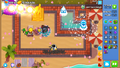 Set to 100% (default).
 -
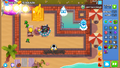 Set to 99%, full screen effect of Grand Saboteur and the water freeze effect of Absolute Zero are no longer visible.
 -
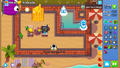 Set to 50%.
 -
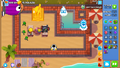 Set to 1%.
 -
Set to 0%, projectiles and effects are no longer rendered.


Ambient Map Effects
Added in version 47.0 Ambient Map Effects serves as a toggle for ambient animations on certain maps. It disables things like the asteroids on Moon Landing and the weather on Logs and Winter Park. This setting is useful to reduce visual clutter, as well as minimizing lag on lower-end devices. Below is a comparison of the effects of this setting while playing a game against Dreadbloon.
| Ambient Map Effects Enabled | Ambient Map Effects Disabled |
|---|---|

|

|
Tower Placement Snapping
Added in version 49.0, Tower Placement Snapping allows the user to place a tower as close to an invalid location as possible. If the tower ends up passing an invalid location, the tower is locked onto the last valid location until it passes over a valid location again.
Tower Range Circle
Added in version 47.0 Tower Range Circle alters the color of the Range overlay of a tower to improve its visibility. Regardless of the setting, it uses two colors, one to indicate the tower has line of sight in a specific direction and a second one where it does not. It has four options:
- Default: The line of sight is indicated with dark blue with high transparency and the blocked directions are noted in red with medium transparency.
- High Contrast: The line of sight is indicated with white and the blocked directions are noted in black, both with low transparency.
- Color Blind: The line of sight is indicated with cyan and the blocked directions are noted in red, both with medium transparency.
- Color Blind + High Contrast: The line of sight is indicated with cyan and the blocked directions are noted in red, both with low transparency.
| Visual aid | High Contrast off | High Contrast on |
|---|---|---|
| Color Blind off |  Default |
 High Contrast |
| Color Blind on |  Color Blind |
 High Contrast + Color Blind |
Previously a "Line of Sight" option existed in the in-game settings menu which enabled or disabled the range overlay completely but was removed on version 9.0.
Extras

This option opens a new menu which allows to enable or disable certain visual customization effects related to the visual size of Tower and Bloons. Also, if the player has purchased Double Cash Mode or Fast Track Mode, they can also be toggled in this menu.
Creator Support

The Creator Support option allows players to enter the code (typically the name) of a content creator authorized by Ninja Kiwi. If they do, a checkmark will appear in the corner of the button and the creator will receive a small commission from in-app purchases from the Shop such as Legends or Monkey Money. Additionally, after making a purchase with a creator code the player will unlock the GG Nexus Avatar for free.
Twitch Integration

|
|
This article is in need of research. You can help out by editing this article or discussing your findings on the talk page. The editor who added this notice elaborates: Determine the functionality of this option |
This option opens a menu where the player can enable integration with Twitch. Details of this integration are currently unknown.
In-game settings

This menu is accessible by clicking on the blue gear button at the top right of the screen, next to the round counter. While is open the game will pause (except in Co-op games) and because of this, it is also commonly called the Pause menu. It provides a subset of the main settings that affect gameplay which include:
- Twitch Integration
- Hotkeys
- Accessibility
- Volume Control
In addition to that the menu also contains and additional set of options, all of these are preserved between games..
Tower placement settings
The three options located in the left, above the volume control, have effects on how towers are placed in the map:
- Drag and Drop: It allows players to place towers in two ways:
- Click / touch the Tower portrait (or press the corresponding hotkey), and then click / touch again in the map to place the tower.
- The player can also click / touch and drag the tower from the menu and place the tower by releasing the mouse button / lift their finger in the desired map position.
- To cancel the placement, the player can either press the Esc key or click / touch outside of the map.
- Drop and Lock: The player can place a tower in the map in same way as drag and drop, but the tower will not be actually placed until the player confirms the placement by clicking on the green check button that appears in the top right of the screen, below the Settings button. There is also a red cross button to cancel the placement.
- "Drag and Drop" and "Drop and Lock" are mutually exclusive, enabling one disables the other.
- Disable Nudge Mode: This option allows a much more fine control of the position of a tower. If the toggle is disabled (Nudge Mode enabled) and using Drop and Lock after placing the tower in the map but before the player confirms via the button, they can move the tower in very small amounts by clicking and dragging the cursor / moving a finger over the map in the general direction where the tower needs to move.
- Drag and Drop can also enter nudge mode by trying to place it on an invalid position and then moving it around in the same way. To finish the placement, the player needs click / touch the tower again.
- If the toggle is enabled (Nudge Mode disabled) the tower will follow the cursor or snap at the last place in the map clicked / touched.
Auto Start
If enabled, the game will skip the break between rounds and continue to the next one automatically after beating all the Bloons currently on the map. This option does not have any impact of the game in Apopalypse or in a game against a Boss Bloon (Challenge, Event or Rush) if the Boss is currently on the screen.
Game Hints
When disabled, the game will not show the game hints when reaching certain rounds. Pop-ups that appear when a certain action or a new Bloon is encountered for the first time are not affected.
Pet Sounds
This toggle enables or disables the sounds made by any pets on the map. Their volume is controlled by the effects slider.
Jukebox controls
It displays the currently played song and if the Jukebox is enabled in the main settings, basic playback controls are also provided, which in order from left to right are:
- Previous track
- Next track
- Repeat current track
- Randomize order.
- Note: The order of the selected tracks in the Jukebox control is randomized once when the button is pressed and the overall track order is preserved between games until the control is disabled. When a game is started, the first track that plays is selected at random.
Store
This button just acts as a shortcut to the Shop.
Home
This button is used to return to the Main Screen of the game (after asking for confirmation). The game is saved at the start of the current round to continue later. In certain game modes returning to the Main Screen ends the game and if the player returns they will have to restart at the beginning (ex. Races) and other game modes only do a checkpoint every 20 rounds (ex. Boss Events).
Restart
This button will end the current game, delete the save game and resume again from the first round, after asking the player's confirmation.
If a game is restarted or resumed from a previous session, the status of some game mechanics like the currently selected Hero, Extras and active Monkey Knowledge will persist, even if they were changed in-between. To update them on a new game, the player must start the game from the map menu.
Continue
This button closes the menu and resumes the game.
Mailbox Menu
|
|
This section is incomplete. You can help out by expanding it. The editor who added this notice elaborates: Is it available on iOS? |

|
This article or section needs more screenshots. See the screenshot guidelines for more information on what screenshots are needed and how to add them. The editor that added this notice elaborates: Screenshot + images) |
The Mailbox Menu, introduced in version 50.0, contains a list of notifications for event rewards, gifts received, update notes, and community messages. It is accessible via an icon located next to the player's XP bar in the main page.
When opened, the mailbox menu contains a "Redeem Code" button where gift codes are redeemable.
In-app purchases
Shop
The shop is an interface used to buy most in-app purchases, including consumables like Monkey Money, Monkey Knowledge Points, Insta Monkeys, Powers and Race Passes. Some content that can be unlocked by playing though the game normally can be unlocked early by purchasing certain bundles, such as Hero Skins, Pets, and towers such as the Dartling Gunner, Beast Handler, and Mermonkey. Some in-app purchases can also include exclusive cosmetics such as banners or profile avatars. Some content can only be obtained by purchasing it from the shop, such as Legends, Double Cash Mode, Fast Track Mode, and more uses of Battle Cat! via an ongoing collaboration with Mattel's Masters of the Universe franchise.
Map Editor Special Packs
| Icon | Name / description | Introduced |
|---|---|---|
 |
Map Editor Candy Falls Props Show people you care and reward them with some sweet treats on your maps! Contains delicious, colorful props and a healthy dose of sweetness! |
Version 41.0 |
 |
Map Editor Holiday Props Spread some joy these holidays! A pack of fun, festive props to deck the halls and your maps with! |
Version 40.0 |
Accolades
Accolades are items players can purchase and give to creators in the Content Browser to show support.
Other
| Name | Description |
|---|---|
| Full Monkey Unlock | Unlock all upgrades for a monkey tower instantly. |
| Paragon Unlock | Unlock paragon upgrade for a monkey tower instantly. |
| Full Tower and Paragon Unlock | Unlock all upgrades including paragon for a monkey tower instantly. |
External services
LiNK

|
This section is empty. You can help out by adding to it. |
Game Center
|
|
This section is empty. You can help out by adding to it. |
Google Play
|
|
This section is empty. You can help out by adding to it. |
Steam
Trading cards


Badges
-
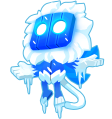 Absolute Zero (level 1)
 -
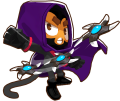 Glaive Lord (level 2)
 -
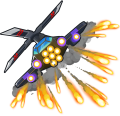 Apache Prime (level 3)
 -
 Perma Spike (level 4)
 -
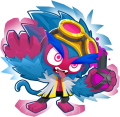 Total Transformation (level 5)
 -
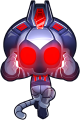 Vengeful True Sun God (foil)


Profile backgrounds
-
 Dart and Ice
 -
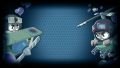 Ace and Heli
 -
 Boomer and Sniper
 -
 Magical Monkeys
 -
 Sun Gods


Emoticons
-
 :btd6crazed:
 -
 :btd6darkknight:
 -
 :btd6salute:
 -
 :btd6stunned:
 -
 :btd6thumbsup:


Epic Games Store
|
|
This section is empty. You can help out by adding to it. |
Twitch
|
|
This section is empty. You can help out by adding to it. |
Prime Gaming
| # | Text | Rewards | Availability |
|---|---|---|---|
| 1 | Pat Fusty Hero Bundle Get Pat Fusty Hero and more. |
 Pat Fusty unlock Pat Fusty unlock Fusty the Snowman unlock Fusty the Snowman unlock Pat Fusty Avatar Pat Fusty Avatar Fusty the Snowman Penguin Fusty the Snowman Penguin
|
28 December 2022 – 4 January 2023 |
| 2 | Unknown |  500 500 Gwen Firefox Gwen Firefox Gwen Fireball Gwen Fireball
|
23 January 2023 – 31 January 2023 |
| 3 | MOABs Bundle Glow up your MOAB-Class Bloons with this epic pack of Bloon cosmetics |
 Top Hats Top Hats Retro MOAB Retro MOAB Retro BFB Retro BFB Shark DDT Shark DDT Steampunk ZOMG Steampunk ZOMG Piñata BAD Piñata BAD
|
20 February 2023 – 28 February 2023 |
| 4 | Pet Collection A frog, a bat, a chicken and a rubber ducky... and some Monkey Money. |
200 Ezili Frog Ezili Frog Super Monkey Bat Super Monkey Bat Sub Ducky Sub Ducky Farm Chicken Farm Chicken
|
20 March 2023 – 27 March 2023 |
| 5 | Unknown | 100 Daisy Chain Bloons Daisy Chain Bloons Obyn Peace Obyn Peace Flowers Pop FX Flowers Pop FX Flower Patch Spikes Flower Patch Spikes Butterflies Upgrade FX Butterflies Upgrade FX
|
Unknown |
| 6 | Admiral Brickell Pack Admiral Brickell is at the ready. |
 Admiral Brickell unlock Admiral Brickell unlock Water Bloon Pop FX Water Bloon Pop FX ×5 ×5
|
15 May 2023 – 18 May 2023 |
| 7 | No Monkeys Insta Pack A pack of Insta Monkeys. Without the Monkeys! |
 0-0-4 Dart Monkey 0-0-4 Dart Monkey 4-0-0 Boomerang Monkey 4-0-0 Boomerang Monkey 0-0-4 Bomb Shooter 0-0-4 Bomb Shooter 0-0-4 Tack Shooter 0-0-4 Tack Shooter 4-0-0 Ice Monkey 4-0-0 Ice Monkey 4-0-0 Glue Gunner 4-0-0 Glue Gunner
|
Unknown |
| 8 | Unknown |  0-4-0 Super Monkey 0-4-0 Super Monkey ×1 ×1 ×1 ×1
|
Unknown |
| 9 | Unknown |  Ghost Upgrade FX Ghost Upgrade FX Bomb Pumpkins Bomb Pumpkins Ace Bone Darts Ace Bone Darts Vampire Hunter Engineer Vampire Hunter Engineer Wizard Necro Bloons Wizard Necro Bloons Haunted House Haunted House
|
Unknown |
| 10 | Unknown |  0-3-0 Tack Shooter 0-3-0 Tack Shooter 0-3-0 Bomb Shooter 0-3-0 Bomb Shooter 0-3-0 Banana Farm 0-3-0 Banana Farm 0-3-0 Spike Factory 0-3-0 Spike Factory 0-3-0 Monkey Village 0-3-0 Monkey Village
|
Unknown |
| 11 | Sauda Hero Bundle Slice and dice with Sauda and her pet crane! Plus a Sauda avatar and profile banner! |
 Sauda unlock Sauda unlock Tea Time Sauda Avatar Tea Time Sauda Avatar Leaping Into Space Banner Leaping Into Space Banner Sauda Crane Sauda Crane
|
Unknown |
| 12 | Unknown | 500 Striker Paradrop Striker Paradrop Striker Pup Striker Pup Striker Jones Avatar Striker Jones Avatar
|
Unknown |
Discord
Rich Presence
Rich Presence support for Discord was added to the desktop releases in version 24.0. When playing a game, it displays the map and mode or event on the user's Discord profile.
Quests

On 16 October 2025, Ninja Kiwi released the "Bloons TD 6 Dart Monkey Quest" on Discord.[8] It rewards the Dart Monkey Avatar Decoration by accepting the Quest and playing Bloons TD 6 for 15 minutes while having a Discord client open on the device.
Nexus
|
|
This section is empty. You can help out by adding to it. |
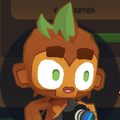
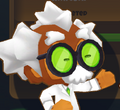
Non-playable characters
-
-
-
-
-
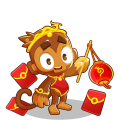 Chinese New Year Collection Event monkey
 -
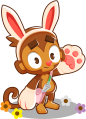 Easter Collection Event monkey
 -
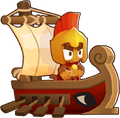
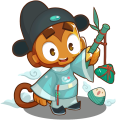 Dragon Boat Festival Collection Event monkey
 -
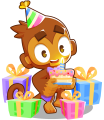 Birthday Collection Event monkey
 -
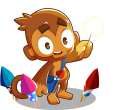 Fireworks Collection Event monkey
 -
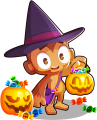 Halloween Collection Event monkey
 -
 Christmas Collection Event monkey
 -
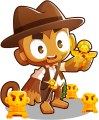 Totem Collection Event monkey


Strategy
- Newer players should focus on easier maps and difficulties in order to unlock Tower XP and Monkey Knowledge before moving onto harder challenges.
- Sauda and Benjamin are good early choices for heroes as they are easy to use and good in most situations.
- Heroes are very powerful and it is usually best to place one among your starting towers so they start gaining XP early.
- Noting tough rounds or rounds that introduce new bloon types such as 24, 28, 59, 63, and 78 is useful to help avoid many game losses, especially on CHIMPS.
- Don't ignore supporting and buffing towers such as Glue Gunner, Monkey Village, and Berserker Brew, as they can provide increased popping power and new damage types.
Update history
|
|
This section is empty. You can help out by adding to it. |
Upcoming features

|
The subject of this article is in development or has yet to release and may change dramatically over time. This article will likely become outdated as more information is released. You can help Blooncyclopedia out by keeping it up-to-date. |
- Update 55
- Dan D'Monke Hero with Prince Adam skin (In-app purchase).[9][10][11] Planned for an exclusive bundle for two weeks after launch, after which Dan will be available for Monkey Money.[12]
- Skull Peak map returning from BTD5,[11] adjusted and renamed Skull Tweak.[12]
- Improvements to co-op[11] and Social Seasons.[12]
- Sword of Power (In-app purchase).[12]
- Update 56
- Planned for mid-2026
- Planned for late 2026
- No known release date
- The Bloonspedia[15] (returning from Bloons Pop!)
- Runic Legends[16]
- Ship Capture, a community-created map determined by the 7 Year Anniversary Map Competition[17]
- Mini-games using tower defense elements[9]
- Monkey Me & 3D social hub[9]
- Safe chat and safe Discord integration[9]
- More game modes that encourage Paragon use[9]
- Mod Maker/Mod System (originally known as the Game Editor, originally planned for updates 54 and 55).[18][9][10][11]
Removed features
|
|
This section is incomplete. You can help out by expanding it. The editor who added this notice did not specify a reason. |
- Soulbind (replaced with Prince of Darkness in version 2.0)
 Ambidextrous 'Rangs (replaced with Recurring 'Rangs in version 22.0)
- Friday Stingers
Technical information
|
|
This section is empty. You can help out by adding to it. |
Cleaner
|
|
This section is empty. You can help out by adding to it. The editor who added this notice elaborates: Describe the "Bloons TD 6 Cleaner" app bundled with Windows and macOS builds |
Account flagging
|
|
This section is empty. You can help out by adding to it. |
Development
|
|
This section is empty. You can help out by adding to it. |
Promotion
Announcements
|
|
This section is empty. You can help out by adding to it. |
Teasers
|
|
This section is empty. You can help out by adding to it. |
Trailers
|
|
This section is empty. You can help out by adding to it. |
Website
|
|
This section is empty. You can help out by adding to it. |
Early access
|
|
This section is empty. You can help out by adding to it. |
Ninja Kiwi Blog
|
|
This section is empty. You can help out by adding to it. |
Reception
|
|
This section is empty. You can help out by adding to it. |
References
- ↑ SteamDB
- ↑ SteamDB
- ↑ Epic Games Database
- ↑ Epic Games Database (iOS)
- ↑ Epic Games Database (Android)
- ↑ "Bloons™ Tower Defense 6 - BTD6 Official". Retrieved Sun, 4 Aug 2024.
- ↑
“ New update
A new update is available. Grab it now!
Close / Update” - ↑ "BTD6 Discord Quest!". Reddit. Retrieved Sat, 18 Oct 2025.
- ↑ 9.0 9.1 9.2 9.3 9.4 9.5 9.6 9.7 9.8 Rohan Sharpe-Anforth. "Bloons TD 6 v52.0 - Update Notes!". Reddit. Retrieved Tue, 16 Dec 2025.
- ↑ 10.0 10.1 10.2 10.3 Rohan Sharpe-Anforth. "Bloons TD 6 version fifty three point oh - Update Notes!". Reddit. Retrieved Thu, 12 Feb 2026.
- ↑ 11.00 11.01 11.02 11.03 11.04 11.05 11.06 11.07 11.08 11.09 "rohan_spibo comments on Update: Bloons TD 6 v54.0 - Update Notes!". Reddit. Retrieved Thu, 9 Apr 2026.
- ↑ 12.0 12.1 12.2 12.3 "Bloons TD 6 v55.0 - Update Preview!". Reddit. Retrieved Fri, 29 May 2025.
- ↑ Rohan Sharpe-Anforth. "Bloons TD 6 v49.0 - Update Notes!". Reddit. Retrieved Wed, 15 Oct 2025.
- ↑ Rohan Sharpe-Anforth. "Bloons TD 6 v50.0 - Update Notes!". Reddit. Retrieved Wed, 15 Oct 2025.
- ↑ "Update: Bloons TD 6 v41.0 - Update Notes!". Reddit. Retrieved Sun, 22 Jun 2025.
- ↑ Rohan Sharpe-Anforth. "Bloons TD 6 v47.0 - Update Notes!". Reddit. Retrieved Tue, 4 Feb 2025.
- ↑ "BTD6 7 Year Anniversary Map Competition!". Reddit. Retrieved Sun, 22 Jun 2025.
- ↑ "Bloons TD 6 v51.0 - Update Notes!". Reddit. Retrieved Tue, 14 Oct 2025.
External links
On other wikis
Official resources
Store pages
- Bloons TD 6 on the App Store
- Bloons TD 6 on the Amazon Appstore
- Bloons TD 6 on Google Play
- Bloons TD 6 on Steam
- Bloons TD 6 on the Microsoft Store
- Bloons TD 6 on the Epic Games Store (Windows)
- Bloons TD 6 on the Epic Games Store (iOS)
- Bloons TD 6 on the Epic Games Store (Android)
- Bloons TD 6 on the Humble Store
Navigation
| Bloons games | ||||||||||||||||||
|---|---|---|---|---|---|---|---|---|---|---|---|---|---|---|---|---|---|---|
| ||||||||||||||||||